NFC Lock E-Key User Manual
Quick guide (simple mode)
Remember how the two pages are split, then follow the short flows below. Later sections give full detail.
Two pages
- Admin settings: for working directly with the lock — binding Admin 1 / Admin 2 / Admin 3 and granting authorization.
- NFC lock management: for settings related to the e-key (unlock/lock). Add locks here, turn on “常用” (Favorite/Common); recipients also add authorized keys here.
First unlock / lock
- In Admin settings, bind Admin 1 (new lock).
- In NFC lock management, turn ON the lock’s “常用” switch.
- On the Unlock / Lock page, unlock or lock.
Add Admin 2 / 3
- Admin 1 opens Admin settings → Manage NFC lock for that lock → Add admin, to open join permission for the other person.
- On the other phone, in Admin settings, bind Admin 2 or Admin 3 (“Join as Admin 2/3” and tap the same lock).
Authorize and share
- Authorize: Admin 1/2/3 use User authorization in Admin settings → the other phone adds the e-key in NFC lock management.
- Share: Admin 1/2/3 also use User authorization in Admin settings to share via WeChat to a WeChat friend; the friend imports in the mini program as prompted.
The sections below are step-by-step detail and screenshots; use them together with this quick guide.
1. Scope and Device Requirements
This manual explains how to bind locks, unlock/lock, grant permissions, and share keys via WeChat. Use the screenshots below as visual references.
- WeChat Mini Program: search for “NFC锁电子钥匙” in WeChat, or scan the official mini-program QR code.
- Android App: download the APK from the official website (see “Get the App”).
- Phone requirements: NFC support; NFC must be enabled in system settings.
- Apple iOS: currently unavailable due to platform limits on passive NFC apps. Stay tuned.
2. Getting the App
- Open the official site Get the App or Download page.
- WeChat users: scan the mini-program QR code or search “NFC锁电子钥匙” in WeChat.
- Android users: tap “Download Android package” and follow the system install prompts.
3. First Use and Adding a Lock
Do not confuse these two different entries:
- Bind admin lock (in Admin settings): registers the lock under this phone’s admin identity, so you can later authorize others and share keys.
- Add NFC lock (in NFC lock management): adds the lock to this phone’s NFC lock list for daily unlock/lock. After adding, you must turn on the “Favorite / Common” (常用) switch for that lock so it appears under “Common NFC locks” on the unlock/lock screen.
3.1 Up to 3 admins per lock (Admin settings)
- Each lock supports at most Admin 1, Admin 2, and Admin 3 (three admin seats).
- On the first bind, choose “Bind Admin 1 (new lock)”: the phone that completes this becomes Admin 1.
- Admin 2 / Admin 3 cannot bind a new lock as Admin 1 by themselves. Admin 1 must open Manage NFC lock → Add admin to grant join permission; the other phone then chooses “Join as Admin 2/3 (already authorized)” in Admin settings and taps the same lock.
- Admin 1 may remove Admin 2/3 or initialize the lock where the UI allows.
- Open the mini program or App; accept the User Agreement and Privacy Policy.
- Bind Admin 1 (new lock): Admin settings → Bind → “Bind Admin 1 (new lock)” → hold NFC against the lock until success.
- (Optional) Add Admin 2/3: Admin 1 uses Manage NFC lock → Add admin → the other phone joins as Admin 2/3 in Admin settings on the same lock.
- Add NFC lock: NFC lock management → add NFC lock → hold against the lock until added; you may rename it.
- Mark as Favorite/Common (required before unlock/lock): in NFC lock management, turn ON “常用”. If off, the lock cannot be used on the unlock/lock screen.
If there is no response: confirm NFC is on, remove metal cases/shields, and retry.
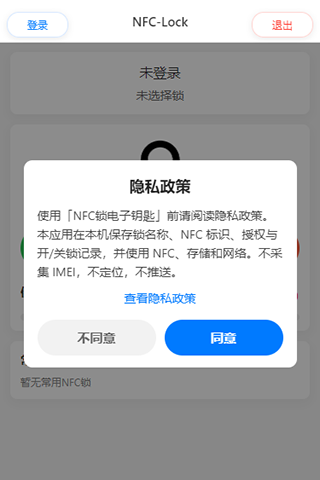
Login
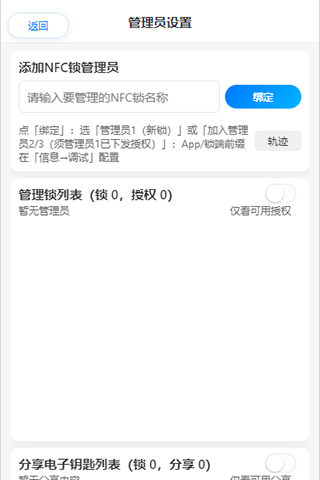
Admin settings (Admin 1/2/3)
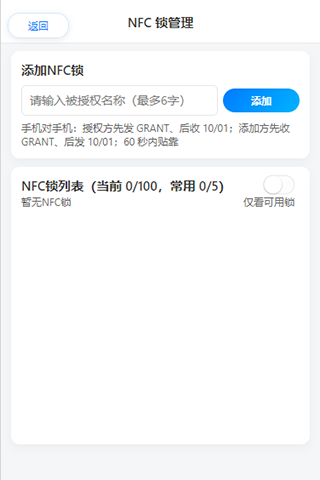
NFC lock management (add / Favorite)
4. Unlock / Lock
Prerequisite: the lock must already be added in NFC lock management, and its “常用” (Favorite/Common) switch must be ON. Otherwise it will not appear under “Common NFC locks” and you cannot unlock/lock.
- Confirm the lock’s “常用” switch is ON in NFC lock management.
- Open the unlock/lock screen and select the target lock in the “Common NFC locks” list.
- Choose Unlock or Lock.
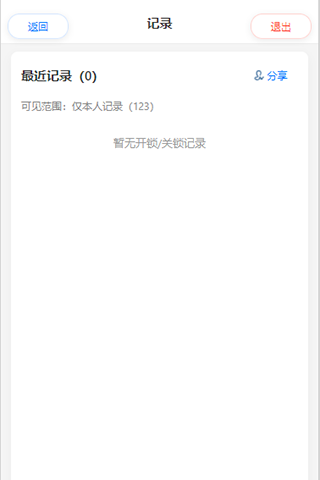
- Hold the phone against the lock and wait for the countdown and result; check Records for history.
Keep the phone in place during the operation. If the lock does not respond, retry later or contact support.
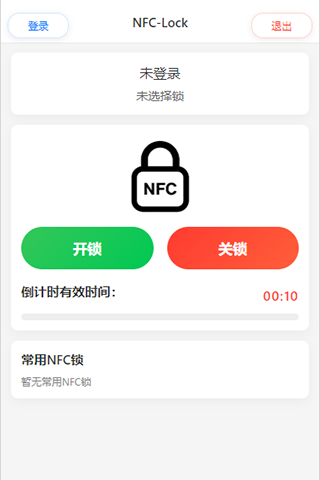
Unlock / Lock
Records
5. Authorizing E-Keys
Admin 1, Admin 2, and Admin 3 authorize others from User authorization in Admin settings (this phone must already be bound as that admin — see Section 3 and the Quick guide). The recipient then adds the e-key in NFC lock management; or use WeChat friend share (Section 6). Always verify the recipient before granting.
5.1 Types of limits
When authorizing, choose one or more of the following (as offered in the UI):
- Time limit: set effective/expiry time or validity period; after expiry the key cannot be used.
- Permission limit: set the recipient’s permission level (e.g. normal user, management — as listed in the UI).
- Use-count limit: set how many unlock/lock uses are allowed; the grant ends when the count is used up.
5.2 “Management” under permission limits
If you grant a management-type permission under permission limit, you may still combine it with a time limit and a use-count limit: the recipient’s management-related ability can be constrained by validity period and remaining uses. When time expires or uses run out, that grant ends (the UI may show soft-manage / re-grant counts — follow the app).
5.3 Steps (summary)
- Admin 1/2/3 open User authorization in Admin settings.
- Choose the permission level and set time / use-count limits as needed.
- Near-field: after the grant, the other phone adds the key in NFC lock management; or use WeChat friend share from User authorization (Section 6).
- After add/import, the recipient unlocks/locks within the grant; if management remains valid, they may re-authorize per the rules.
Admin settings / User authorization
6. Sharing Keys via WeChat
- Admin 1/2/3 open User authorization in Admin settings and choose share to a WeChat friend (as shown in the UI).
- Generate the share QR/image and send it via WeChat.
- The recipient must use WeChat Scan (or long-press recognize) to open the mini program and import.
- After import, the recipient can unlock/lock within granted rights.
Do not use the system camera to scan. Do not post share content publicly.
7. Records and Settings
- Unlock records: stored on device; cleared if the app is uninstalled.
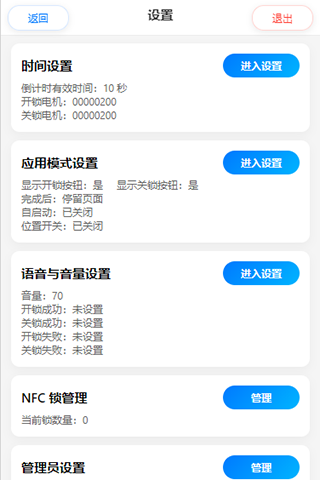
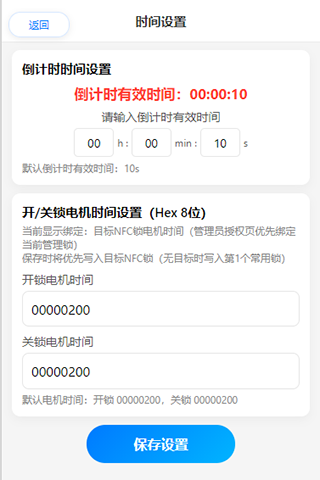
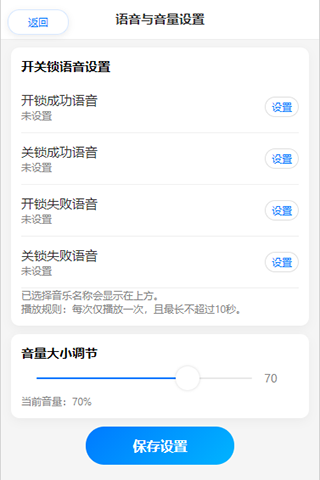
- Voice/volume: custom audio stays on device only.
- Legal texts: see User Agreement and Privacy Policy.
Settings
Time settings
Voice & volume
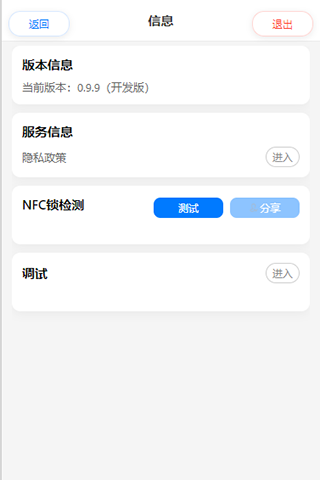
About / Info
8. Mini Program vs App
- Core unlock/lock, lock management, authorization, and sharing are aligned.
- The mini program requires WeChat; the App is a standalone Android package.
- Recipients of WeChat shares typically import keys in the mini program.
9. Quick FAQ
- No response on tap: check NFC, contact position, and metal interference.
- Share does not open mini program: use WeChat Scan.
- Temporary key expired: check count/time; ask an admin to re-grant.
- iOS unavailable: not supported yet.
10. Getting Help
Product details: Product page. Contact: Contact us. Support hub: Technical support.